



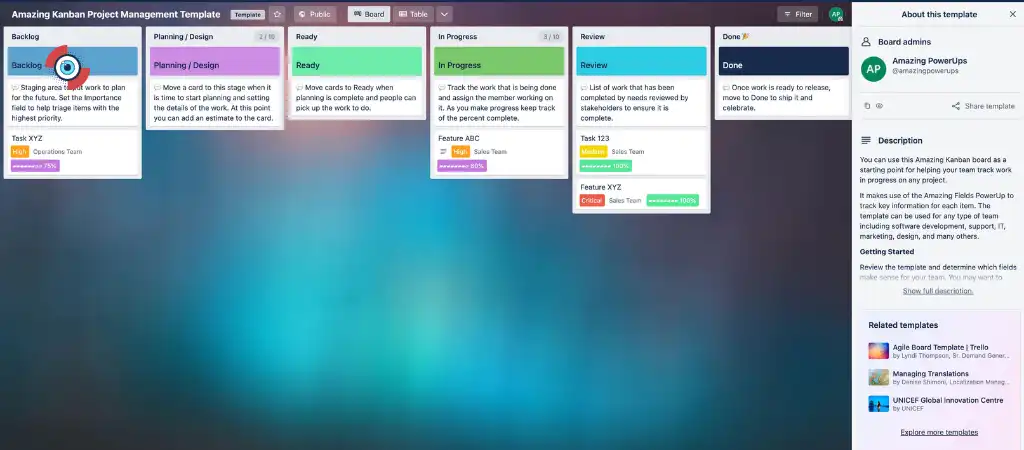
Trello has become one of the most widely used project management tools in recent years. It offers a simple, visual approach to managing tasks and collaborating with team members through boards, lists, and cards. Each card typically represents a task or an item to be managed, tracked, or worked on. But what happens when a card is no longer relevant, needed, or was created by mistake? In such cases, deleting it becomes necessary.
In this guide, we will take you through the detailed process of how to delete a card in Trello, why you might want to do so, and what alternatives exist if deletion is not the best option.
What Is A Trello Card?
Before we delve into the specifics of how to delete a card in Trello, it’s important to understand what a Trello card is. Trello operates on a basic structure of Boards,
Lists, and Cards.
- Boards represent overarching projects or large areas of work.
- Lists are used to categorize the stages or categories within the board.
- Cards are individual tasks, ideas, or work items that sit within these lists.
Each card can hold information such as a description, due dates, comments, attachments, and checklists. You can assign cards to team members, set deadlines, and track progress.
However, there may come a time when you no longer need a card. Maybe the task has been completed or canceled, or perhaps the card was created by mistake. In these cases, you’ll want to delete a card in Trello.
Why Delete a Card in Trello?
There are several reasons you might want to delete a card in Trello:
-
Completed Tasks
Sometimes, tasks are completed and do not need to be archived for future reference.
-
Duplicate Cards
Accidental duplicates may occur, and keeping them can create confusion.
-
Mistakenly Created Cards
Cards that were created in error or no longer serve any purpose may need to be deleted.
-
Organizational Purposes
To maintain a clean and organized Trello board, it’s often a good idea to eliminate unnecessary clutter.
However, it’s important to note that Trello does not offer a direct “delete” option on cards. Instead, you must go through an archiving process before deletion becomes an option.
The Process of Deleting a Card in Trello
Step 1: Find the Card You Want to Delete
The first step in the process to delete a card in Trello is to find the specific card you want to remove. Navigate to the appropriate board and list, and locate the card.
Step 2: Archive the Card
Trello doesn’t allow direct deletion of a card. Before you can actually delete a card in Trello, you must first archive it. Archiving removes the card from the board but doesn’t permanently delete it. It essentially hides the card from view, keeping it out of your workflow but allowing it to be retrieved later if needed.
To archive the card:
- Open the card you want to archive.
- Click on the three dots (also called the “More” button) in the card menu.
- Select Archive from the list of options.
At this stage, the card will be removed from the board and list, but it isn’t gone forever.
Step 3: Delete the Archived Card
Once the card is archived, you can proceed to delete the card in Trello permanently.
Follow these steps:
- Open the Menu in the right-hand corner of your Trello board.
- Click on Archived Items. This will show you all archived cards and lists.
- Locate the card you want to delete from the list of archived items.
- Once you’ve found the card, you will see an option to Delete. Click on it, and you’ll be prompted to confirm your decision.
Be aware that once a card is deleted, it cannot be recovered. This is permanent, and Trello doesn’t provide any undelete or recovery option.
Alternatives to Deleting a Card
Archiving vs. Deleting
In many cases, it might be better to archive a card rather than delete a card in Trello. Archiving simply removes the card from active view, keeping the information stored within Trello in case you ever need to refer back to it.
Here are a few situations where archiving might be a better option:
-
Historical Reference
You might want to keep a record of the task in case it becomes relevant again.
-
Reporting or Auditing
Sometimes, you need to show the history of completed or canceled tasks.
-
Team Collaboration
If you’re working with a team, archiving allows everyone to track the card’s lifecycle without losing track of previous work.
Trello’s search function allows you to easily find and recover archived cards if necessary.
Renaming or Reassigning the Card
Another alternative to deleting a card is to rename or reassign it. If the card was created by mistake, but the task or item still needs to exist in some form, you can simply edit the card instead of deleting it.
-
Renaming
Change the card title and details to something more appropriate.
-
Reassigning
If the card has a due date or specific team members assigned, you can update those elements to reflect the current situation.
Recovering Archived Cards
If you’ve archived a card by mistake and need to recover it, Trello makes this easy.
Here’s how you can recover an archived card:
-
Go to the Board Menu
On the right-hand side of your Trello board, you’ll find the Menu. Click on it to open the options.
-
View Archived Items
Under the Menu options, you’ll find an option to View Archived Items.
-
Find the Card
Use the search feature to find the specific card you want to recover.
-
Send the Card Back to the Board
Click on the card, and select the option to Send to Board.
This will move the card back to the list it was originally in, restoring it to active status.
Best Practices When Deleting a Card in Trello
Here are some tips to ensure you’re using the delete a card in Trello function efficiently:
-
Double-Check Before Deleting
Since deleted cards cannot be recovered, always double-check that you want to permanently remove the card. If you’re unsure, it’s safer to archive.
-
Use Archiving for Completed Cards
If your board becomes too cluttered, archiving completed cards can help clean things up without losing valuable history.
-
Keep Board Clean and Organized
Deleting unnecessary cards helps maintain clarity and reduces visual clutter, especially for large, collaborative boards.
-
Use Labels and Checklists Before Deleting
If you need to track the reason for deletion or task completion, make sure to update the card with labels or comments before removal.
You Might Be Interested In
- What Are The Basic Software Tools?
- How To Use Jira For Project Management?
- How To Create A Sprint In Jira?
- How To Use Trello For Project Management?
- What Are 7 Types Of Graphic Design?
Conclusion
Knowing how to efficiently delete a card in Trello can greatly enhance your ability to manage tasks and maintain a clean, organized workflow. While Trello does not provide a direct “delete” button, the process of archiving and then deleting cards is straightforward once you understand the steps.
However, before you delete, it’s essential to weigh the pros and cons of archiving versus permanently removing a card. Often, archiving offers a safer, more flexible option, allowing you to recover the card if necessary.
By following this comprehensive guide, you can confidently manage your Trello boards and ensure that your tasks, whether ongoing or completed, remain organized and efficient.
FAQs about delete a card in Trello
Can You Recover a Deleted Card in Trello?
Once you permanently delete a card in Trello, it cannot be recovered. This is one of the few irreversible actions within the platform, so it’s important to proceed with caution. While Trello provides the option to archive cards, allowing you to remove them from view without fully deleting them, a deleted card is gone for good.
This means all associated data, including checklists, attachments, comments, and any other information stored within the card, is lost permanently.
If you’re unsure about whether you may need the card in the future, it’s best to archive it instead of deleting it. Archiving allows you to easily retrieve the card and restore it to your board if necessary. For those who mistakenly delete important cards, unfortunately, Trello doesn’t offer any built-in “undelete” function or recovery option, so the decision to delete should only be made when you’re certain the card is no longer needed.
What’s the Difference Between Archiving and Deleting a Card?
The difference between archiving and deleting a card in Trello is significant. Archiving a card removes it from the visible board, but it remains stored within Trello, allowing users to retrieve and restore it at a later date. This is especially useful if you need to clear space on your board but still want to keep a record of past tasks or items. Archived cards can be searched for and easily returned to their original position on the board, making them accessible whenever needed.
Deleting a card, however, is a permanent action. Once a card is deleted, it is completely erased from your Trello board and can never be recovered.
This includes all data linked to the card, such as comments, attachments, labels, and checklists. Deleting should be done cautiously and only when you’re certain that the card is no longer needed for future reference. If there’s even the slightest chance you might need the card later, it’s better to archive it instead.
Can I Delete Multiple Cards at Once?
Trello currently does not offer an option for bulk deletion of cards. This means if you want to delete multiple cards in Trello, you will need to archive and delete each card individually. This process can become time-consuming, especially if you have numerous cards that need to be removed.
For large boards with many tasks, manually deleting cards one by one can be cumbersome, particularly if the goal is to clean up a backlog of old or irrelevant tasks.
However, there are some third-party tools and Trello power-ups that may offer bulk actions for managing cards. These tools can streamline the process of archiving or deleting multiple cards, making it easier to manage large boards.
But if you’re sticking with Trello’s native features, be prepared for the manual process of handling each card separately. To avoid future clutter, you may want to implement regular board clean-ups to prevent an overwhelming number of cards from piling up.
Is There Any Way to Automatically Delete Cards?
Trello does not currently have a built-in feature for automatically deleting cards after certain criteria are met. Any card deletion must be done manually, whether by a user or a team member. If you’re managing a dynamic Trello board with many moving parts, this lack of automation can sometimes feel restrictive.
Automatic deletion could be useful in cases where tasks have a defined life cycle and no longer need to be stored after completion. For example, recurring tasks that are completed and no longer required might benefit from an automatic deletion feature.
While Trello doesn’t provide automatic deletion, there are possible workarounds using third-party automation tools like Butler for Trello or integrations with other workflow platforms such as Zapier. These tools allow users to create rules and triggers based on specific conditions (such as when a task is marked complete), though they generally help with automating actions like moving cards to an archived list rather than outright deleting them. For now, card deletion remains a manual process within Trello.
Can I Recover an Archived Card?
Yes, archived cards in Trello can easily be recovered. When a card is archived, it is removed from the active board but remains stored within Trello’s system, allowing you to retrieve it at any time. If you need to bring an archived card back into the workflow, you can do so by going to the board menu and selecting “Archived Items.” From there, you can search for the specific card and restore it to its original list.
This feature is particularly helpful for those who archive tasks or items that may need to be referenced again later. Rather than deleting cards, which results in permanent loss, archiving gives you flexibility by allowing you to clean up your board without losing important information. Cards can be restored to active status with all the original data intact, making archiving a safe option when you’re uncertain about permanently removing a card.
