



You’re staring at a long list of plain text, numbers, labels, or maybe even data that someone carelessly copied from an email or a PDF. It looks harmless, almost boring. But behind that simple list lies the potential for something powerful Excel formulas that can calculate, analyze, and visualize your data automatically. The problem? Turning that plain text into working formulas often feels like solving a puzzle.
This guide will show you exactly how to do it. Whether you’re an Excel beginner or an experienced data analyst, by the end of this article you’ll know how to convert plain text into Excel formulas quickly and accurately. Using a mix of smart Excel tricks, automation techniques, and a bit of creative thinking, you’ll learn how to transform static data into dynamic formulas that actually do something.
Let’s unlock the real potential of Excel where text becomes logic, numbers gain meaning, and your spreadsheet starts thinking for you.
Why Converting Plain Text to Excel Formulas Matters
The Hidden Problem with Plain Text
Plain text data looks simple, but it’s often the most frustrating kind of data to work with. It might come from emails, websites, reports, or exported files. When pasted into Excel, it doesn’t automatically calculate or recognize structure.
For example, you might receive:
But Excel treats it as a piece of text — not as a formula. That means no calculation happens until you manually convert it.
This process is critical for accountants, analysts, marketers, and data entry professionals who often receive data in text format. The ability to turn plain text into Excel formulas is a productivity superpower that can save hours and prevent costly mistakes.
Understanding Excel’s Relationship with Text and Formulas
Before diving into the how-to, let’s briefly understand what Excel does when you enter text versus formulas:
-
Plain Text
Excel displays it exactly as written. It doesn’t evaluate or calculate.
-
Formula
Starts with an equal sign (=) and performs a function or calculation.
For example:
-
Text:
SUM(A1:A10)→ Excel just shows this as words. -
Formula:
=SUM(A1:A10)→ Excel adds all values from A1 to A10.
When you copy or import data, Excel sometimes fails to recognize formulas because of formatting issues or extra characters. That’s where conversion techniques come in.
Step-by-Step Methods to Turn Plain Text into Excel Formulas
1. Using Find and Replace
This is the simplest and fastest way.
-
Select the cells containing the plain text formulas.
-
Press
Ctrl + Hto open Find and Replace. -
In the “Find what” box, type
=(if your text formulas lack the equals sign). -
In the “Replace with” box, also type
=. -
Click Replace All.
Excel reinterprets the text as formulas.
Pro Tip: If your text already starts with
=, just double-click in the cell and press Enter — Excel will recognize it as a formula.
2. Using Paste Special
If your formulas are stored as text with quotation marks, such as "=A1+B1", you can convert them like this:
-
Copy the range with the text formulas.
-
Select a new cell or range.
-
Go to Home > Paste > Paste Special.
-
Choose Values and press OK.
-
Now use Find and Replace to remove unwanted characters like quotes.
This method works well for cleaning up formulas imported from external sources.
3. Using Excel Functions
When your text needs minor formatting adjustments, Excel’s own functions can help.
a) Using SUBSTITUTE()
If your text formulas contain unwanted characters, use:
This removes quotation marks (ASCII 34).
b) Using CONCATENATE() or TEXTJOIN()
You can dynamically build formulas from text fragments. For example:
This creates a formula string like =SUM(B1:B10).
To actually make Excel calculate it, you’ll need VBA or a manual step (explained next).
4. Using VBA (Macro) to Convert Text to Formula
For power users, VBA is the most efficient solution.
Here’s how:
-
Press
Alt + F11to open the VBA editor. -
Click Insert > Module.
-
Paste this code:
-
Close the editor.
-
Select your range of text formulas.
-
Run the macro (
Alt + F8) and chooseConvertTextToFormulas.
Excel will instantly convert every text formula into an active formula.
Bonus Tip: You can assign this macro to a button for future use — perfect for recurring tasks.
5. Power Query Method
Power Query is an advanced but elegant way to handle large text datasets.
-
Go to Data > Get & Transform Data > From Table/Range.
-
Load your text data into Power Query.
-
Use Replace Values or Add Column > Custom Column to shape formulas.
-
After cleaning, load the data back into Excel as a table.
While Power Query doesn’t directly convert text into live formulas, it prepares and structures data for formula-based analysis.
6. Using Third-Party Add-ins
Several Excel add-ins, such as AbleBits, Kutools for Excel, or ASAP Utilities, offer one-click features to convert text to formulas. These tools handle complex formatting and automate repetitive conversions.
If you frequently work with imported text data, such tools can save massive amounts of time and reduce human error.
Handling Common Problems During Conversion
1. Formulas Not Updating Automatically
After conversion, Excel might not calculate formulas right away. To fix this:
-
Go to Formulas > Calculation Options > Automatic.
-
Press
Ctrl + Alt + F9to force recalculation.
2. Extra Characters in Text
Remove extra spaces, quotes, or apostrophes using:
3. Broken Formula References
If you import text from another file, range references may break. You can fix this with Find and Replace by changing sheet names or cell references globally.
Automating the Process
If you often receive plain text data, automation is key. You can combine macros, Power Query, and VBA scripts to streamline conversion.
For instance, you could set up a macro that:
-
Detects text formulas in a specific range.
-
Cleans formatting automatically.
-
Converts them into live formulas.
-
Runs every time a new file is opened.
With automation, you’ll never have to manually convert text again.
Real-World Use Cases
Financial Reporting
Accountants often receive exported data from ERP systems that look like text but are meant to be formulas. Converting them allows Excel to instantly calculate totals, ratios, and summaries.
Data Analysis
Analysts using CSV or TXT files may find that calculations are lost during import. Converting plain text into Excel formulas restores dynamic functionality.
Marketing and Operations
Marketers often copy formulas from shared docs or templates. Instead of retyping them, conversion methods make these instantly usable.
Academic Research
Researchers dealing with structured datasets (like survey data) can automate calculations without manual entry errors by using conversion techniques.
Best Practices for Converting Text to Formulas
-
Always back up your data before conversion.
-
Use Data Validation to ensure formulas are correct.
-
Maintain a consistent format — always begin formulas with
=. -
Use named ranges to make formulas readable after conversion.
-
If using VBA, comment your code for clarity.
Bonus: Turning Plain Text Numbers into Values
Sometimes, imported text looks like numbers but won’t calculate. You can fix this by:
-
Multiplying the range by 1 (
=A1*1) -
Or using Data > Text to Columns → Finish.
This technique complements formula conversion, ensuring both numbers and formulas work properly together.
Advanced Technique: Dynamic Formula Conversion
For dynamic or large-scale projects, you can use Excel’s INDIRECT() function to simulate formula behavior without VBA.
For example:
If B1 contains 10, Excel will refer to cell A10.
Though INDIRECT() doesn’t directly convert text to formulas, it enables dynamic referencing — a powerful way to make your spreadsheets more flexible.
Troubleshooting Conversion Issues
| Problem | Cause | Solution |
|---|---|---|
| Formula shows as text | Apostrophe or missing = |
Remove apostrophe, add equals sign |
| #NAME? error | Invalid range or missing reference | Correct cell references |
| Quote marks inside formulas | Imported with double quotes | Use SUBSTITUTE or Find/Replace |
| Slow recalculation | Too many formulas converted | Switch to manual calculation temporarily |
By systematically checking these issues, you ensure every formula runs smoothly.
Why Mastering This Skill Sets You Apart
In today’s data-driven world, Excel remains the foundation of productivity for businesses, researchers, and professionals across industries. Knowing how to turn plain text into Excel formulas isn’t just a neat trick—it’s a sign of technical literacy and problem-solving skill.
While others waste hours manually typing or debugging formulas, you’ll be able to automate, clean, and activate data instantly. That efficiency translates into credibility and confidence in your reports, dashboards, and analyses.
You Might Be Interested In
- How Ai-powered Drone Surveillance Protects?
- What Does Ai Stand For In School?
- How Does Ai Support Decision Making In Real Scenarios?
- How Does Ai Generate Images From Text Prompts?
- 15 No‑code Ai Tools For Non‑developers
- What Are The Ethical Concerns Related To Ai Usage?
- Is Autonomous Vehicle Related To Ai?
- What Is Wombo Ai?
- What Is Ai For Clinical Trial Optimization?
- Why Choose An Ai Search Monitoring Platform For Your Business?
Conclusion
Turning plain text into Excel formulas is about more than formatting — it’s about unlocking hidden intelligence in your data. Whether you use simple shortcuts, clever Excel functions, or full-scale automation, the transformation allows your spreadsheet to think, calculate, and act for you.
Once you master these methods, you’ll never look at a block of text the same way again. Every line of text becomes potential — a formula waiting to come alive. With the right tools and understanding, you can make Excel your most powerful analytical partner, converting static information into actionable insights.
So next time someone sends you a “useless” list of text-based formulas, smile — because you know how to turn that plain text into pure Excel power.
FAQs about Plain Text
How to convert a text into formula in Excel?
To convert text into a formula in Excel, you can use the EVALUATE function (available through named ranges) or a small piece of VBA code. The EVALUATE function interprets text strings as formulas, allowing Excel to calculate results automatically. For example, if cell A1 contains "=SUM(10,20)", you can create a named range using the formula =EVALUATE(Sheet1!A1) to make Excel read it as an actual formula and return 30. This is especially helpful when you’re importing data or formulas from another source where they’re stored as text.
Another option is to use a simple macro (VBA script) that converts all text-based formulas in selected cells into active formulas. To do this, press Alt + F11 to open the VBA editor, paste a small code snippet that uses the Evaluate method, and run it. Once applied, Excel automatically interprets text like "=A1+B1" as a working formula. This method saves time and helps make imported or copied data functional again.
How to convert plain text into Excel?
Converting plain text into Excel is easy and can be done in several ways depending on your data format. The most common method is to use the Text to Columns feature. Simply paste your text into a column, highlight it, then go to Data > Text to Columns. Choose either Delimited (if your text is separated by commas, tabs, or spaces) or Fixed width (if your text is aligned in columns). Excel will split the text into separate columns automatically, making your data more readable and organized.
You can also import text files directly into Excel. Go to File > Open, select your text or CSV file, and Excel will guide you through a step-by-step wizard to format and arrange your data. This feature helps transform raw text files into structured spreadsheets that are easy to analyze and modify. Once imported, you can format, sort, or apply formulas to your data just like any normal Excel worksheet.
What is the AI tool for Excel formulas?
AI tools for Excel formulas are designed to help you create, understand, and debug formulas quickly — even if you’re not an expert in Excel. One of the most popular AI-powered tools is ChatGPT for Excel, which can generate complex formulas based on plain-language instructions. For example, you can type “find the average sales excluding zero values,” and the AI will instantly provide the correct Excel formula. Other tools like Formula Bot, Excelformulabot, and AI Excel Assistant also perform similar tasks, turning your text-based requests into ready-to-use formulas.
These AI assistants save a lot of time, especially for those who aren’t familiar with Excel’s vast formula library. Instead of memorizing hundreds of functions, you can describe what you want in everyday language, and the AI translates it into a correct and efficient formula. Many of these tools are web-based or available as Excel add-ins, making them easy to use directly within your spreadsheet.
How to convert to plain text in Excel?
If you have formulas or formatted data that you want to turn into plain text, Excel offers several simple methods. The easiest way is to copy and paste as values. Select the cells that contain formulas, right-click, and choose Paste Special > Values. This replaces the formulas with their current results, effectively converting everything into plain text. This is useful when you want to share your spreadsheet or prevent changes caused by dynamic formulas.
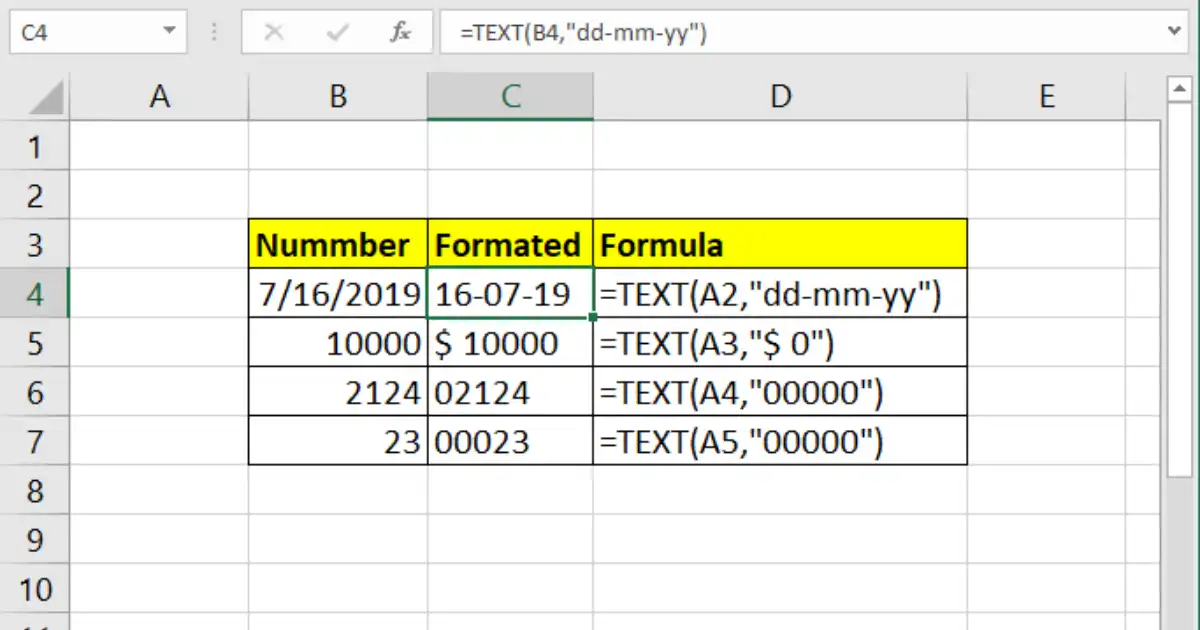
Another method is to use Excel’s TEXT function. For example, =TEXT(A1,"0.00") converts numbers or dates into text with specific formatting. If you’re working with imported data, this can also help standardize how your data looks before exporting it. Once converted, your text won’t change when the original data updates, giving you a static, easy-to-read version of your spreadsheet content.
How to convert text to formula in Word?
Microsoft Word isn’t designed to calculate formulas the way Excel does, but it can still handle simple conversions and calculations. If you have a text that looks like a formula (for example, “=10+20”), you can insert it into a Word table cell, then use the Formula option found under the Layout tab (inside the Table Tools menu). Word will interpret the formula and display the result in that cell. For instance, typing =SUM(ABOVE) in a table cell will add up all numbers in the cells above it.
However, if you want to make Word recognize a text formula more dynamically—similar to Excel—you’ll need to use field codes. Press Ctrl + F9, type your formula inside the brackets (e.g., { =10+20 }), and then press F9 again to update the field. This converts the text into a functional formula field. Though not as powerful as Excel, it’s a handy feature for performing quick calculations or inserting results into documents.
